User Management
WorkingRoom lets you invite users into your tenant. Users in the same tenant share the same file system and can work together in the same workspace.
You can also assign a role to each user to control what they are allowed to do inside the tenant.
Invite users to your tenant
After your tenant is created, you can invite additional users to join it.
You can open the user list screen to review current users in the tenant and manage user-related operations.
To open the menu for actions such as deleting a user, changing a role, or resetting a password, right-click a user row in the user list.
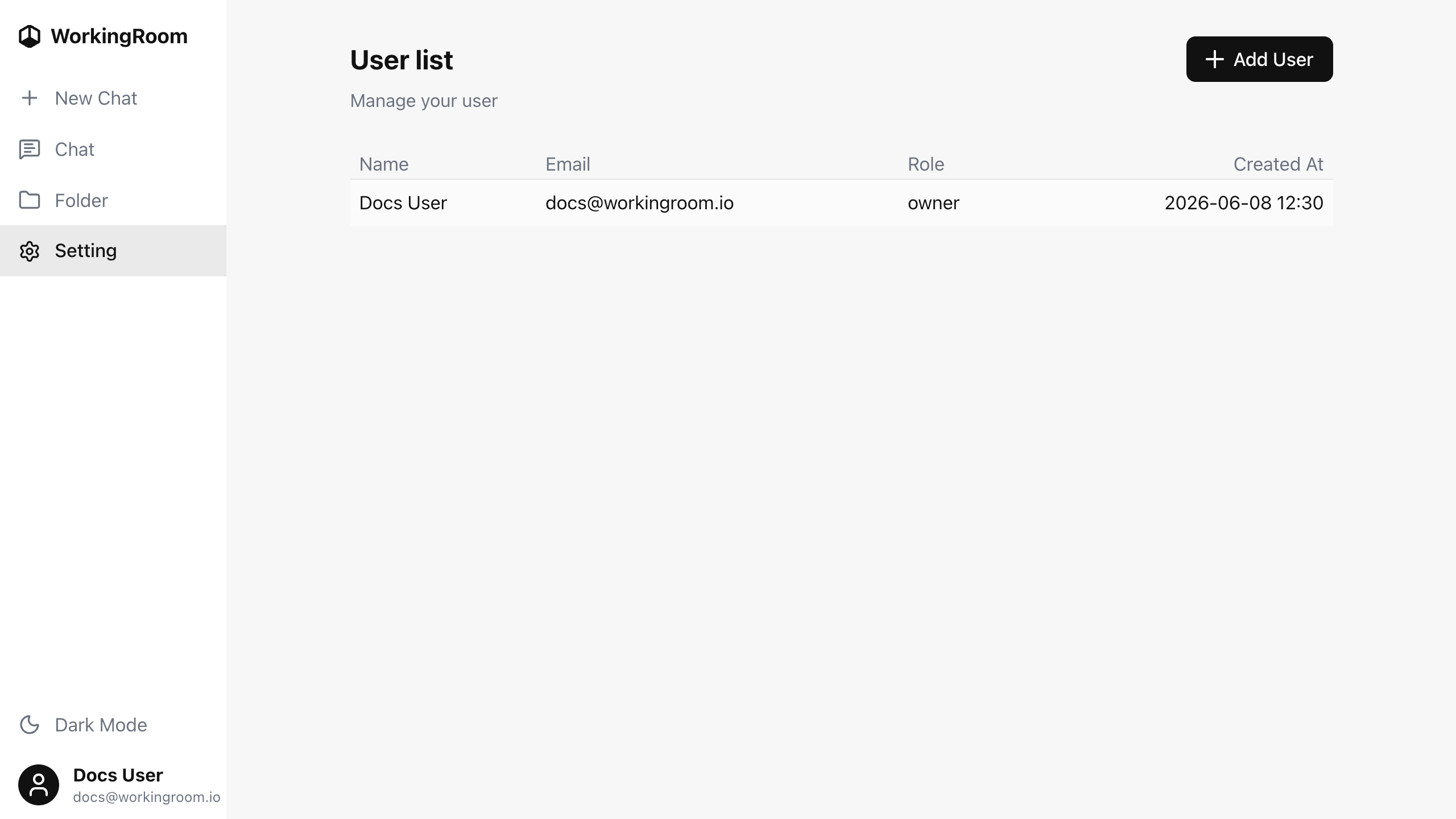
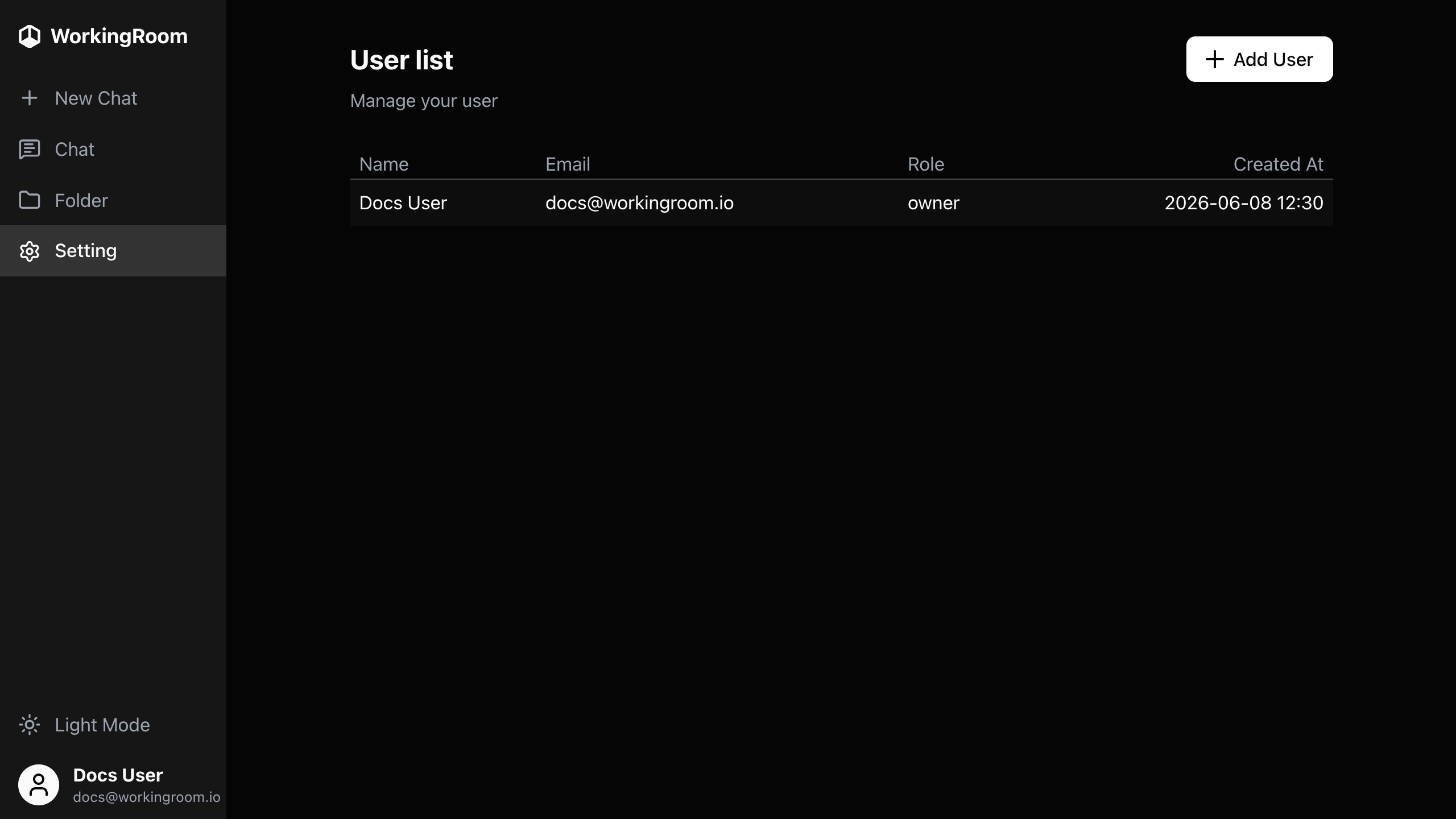
Invited users become members of the same tenant, which means they can access the shared file system for that tenant and collaborate with other users there.
Depending on the role you assign, their access to user management and organization settings can be limited.
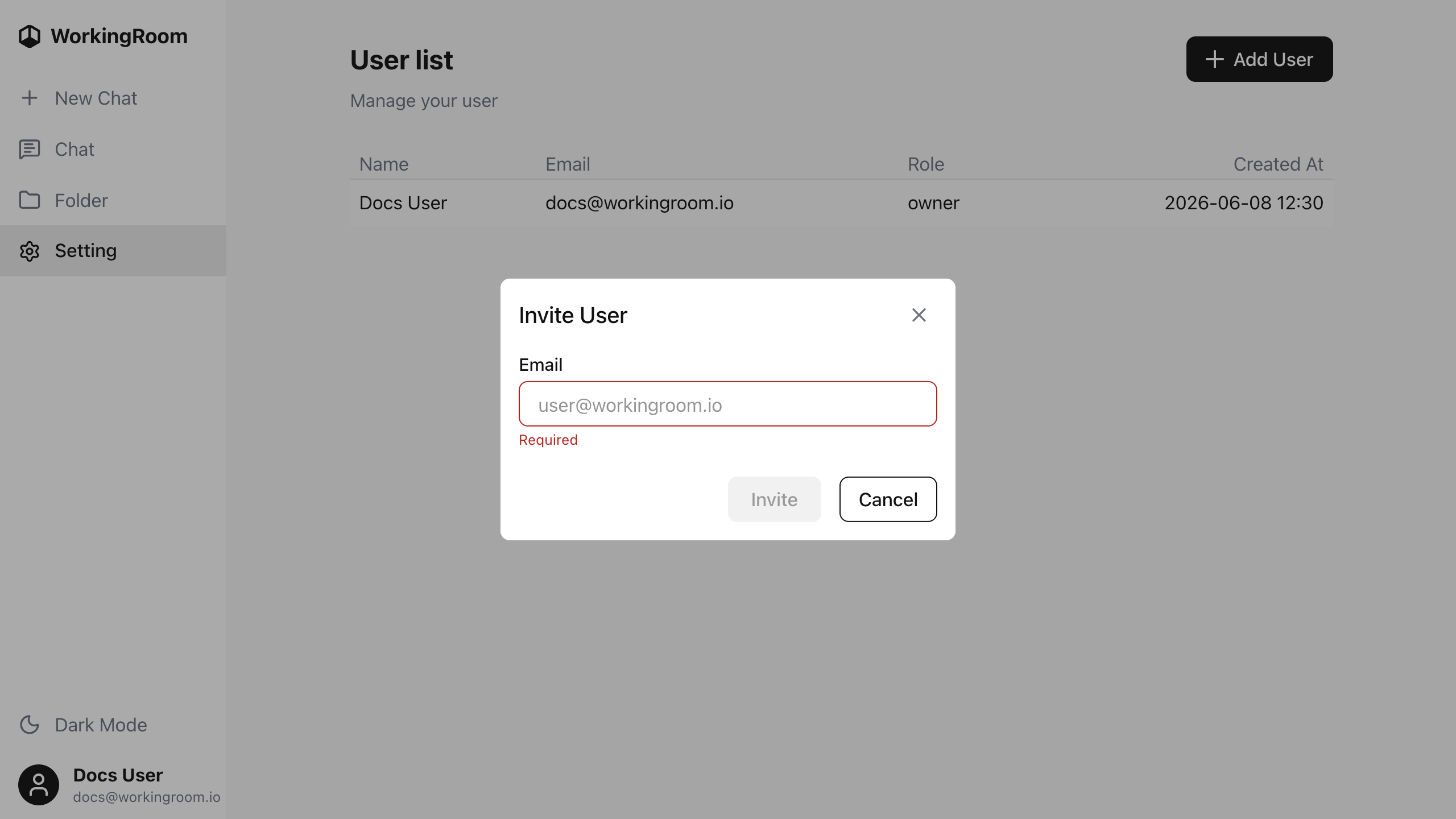
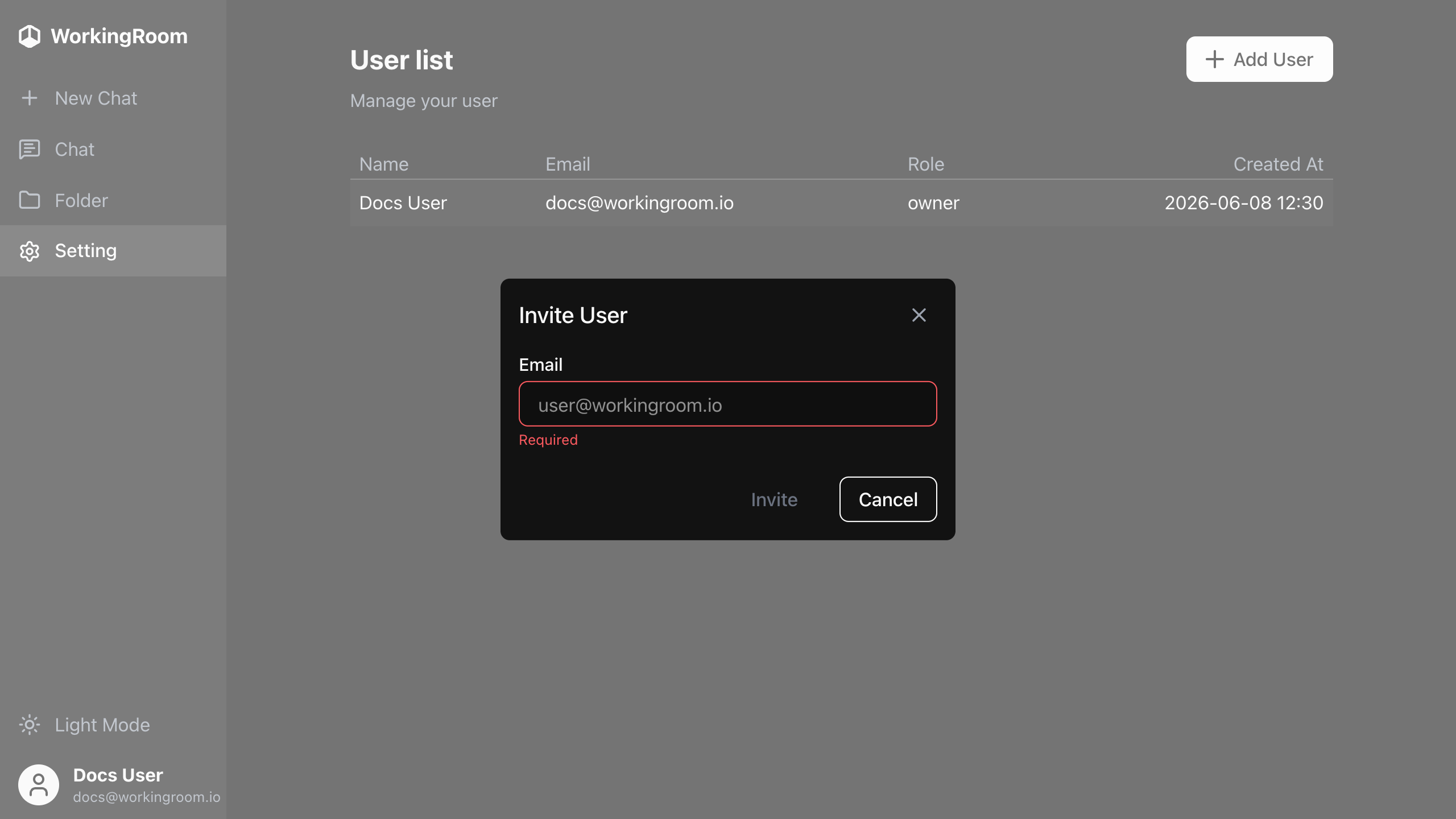
When you invite a new user, WorkingRoom opens an invitation modal where you can enter the user information and assign the appropriate role.
Roles
WorkingRoom provides the following tenant roles:
| Permission | owner | admin | member |
|---|---|---|---|
| User invitation | ✅ | ✅ | 🚫 |
| User deletion | ✅ | ✅ | 🚫 |
| Role change | ✅ | ✅ | 🚫 |
| Password reset | ✅ | ✅ | 🚫 |
| Open organization settings | ✅ | ✅ | 🚫 |
| Edit tenant settings | ✅ | 🚫 | 🚫 |
| Delete tenant | ✅ | 🚫 | 🚫 |
Role details
Owner
The owner is the user who creates the tenant.
Only one owner exists in each tenant.
The owner can manage users, view organization settings, update tenant settings, and perform owner-only tenant operations.
Admin
The admin role is intended for tenant administrators.
Admins can perform the main user management tasks, including inviting users, removing users, resetting passwords, changing roles, and opening the organization settings pages.
In practice, admins can do almost everything needed for tenant operations.
However, admin is not completely identical to owner: some tenant-level actions remain owner-only.
Member
The member role is for regular users working inside the tenant.
Members can use the shared tenant file system, but they cannot manage other users. They cannot add users, delete users, change user roles, or open the organization settings page.
By default, one WorkingRoom server supports creating a single tenant. If you want multiple people to work in that tenant, invite them as users and assign the appropriate role.