File System
The file system in WorkingRoom is shared by users in the same tenant.
This means that files uploaded by one user can also be accessed by other users in the tenant. AI agents in the tenant can also access those shared files and use them while working.
Upload files
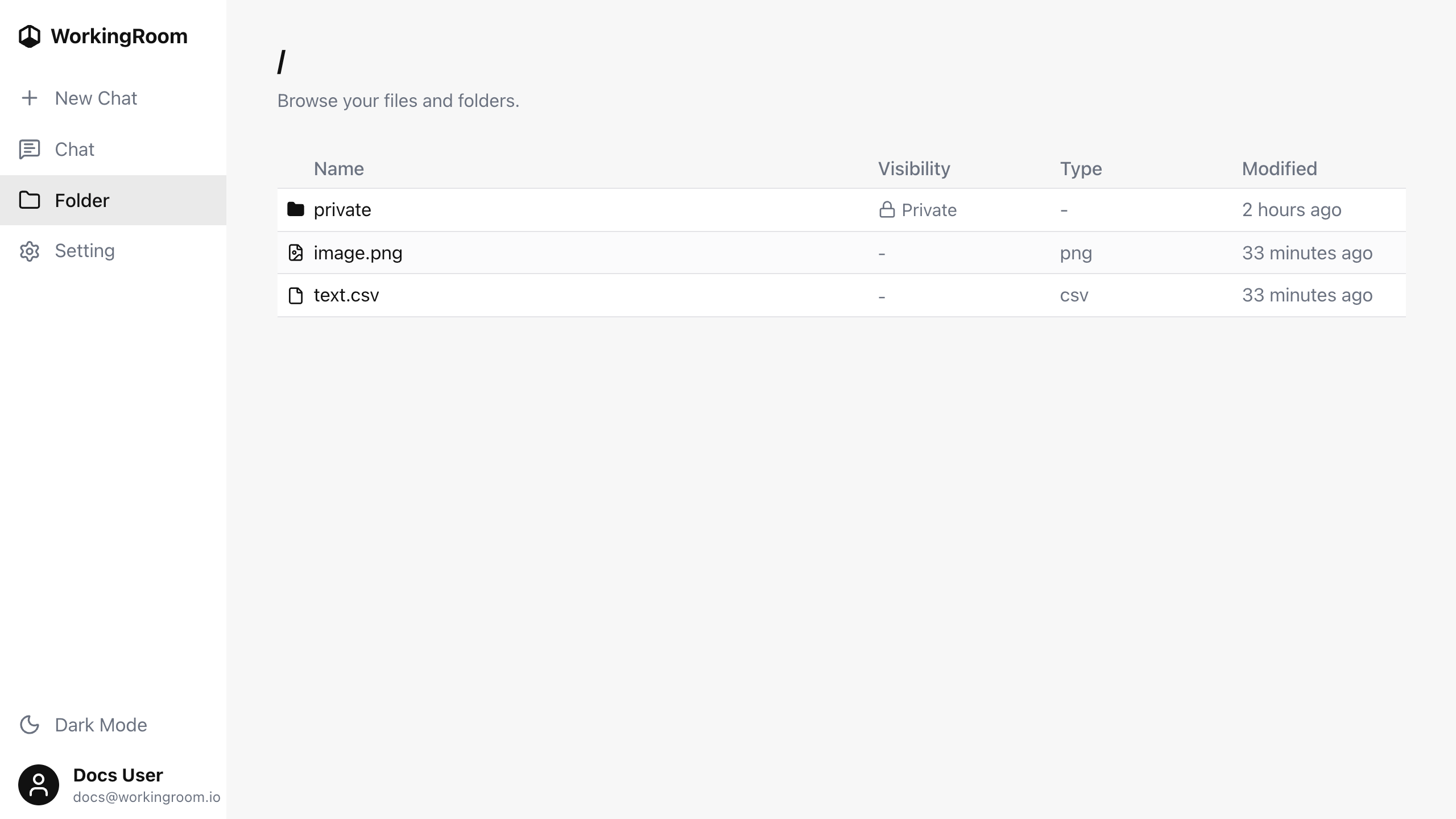
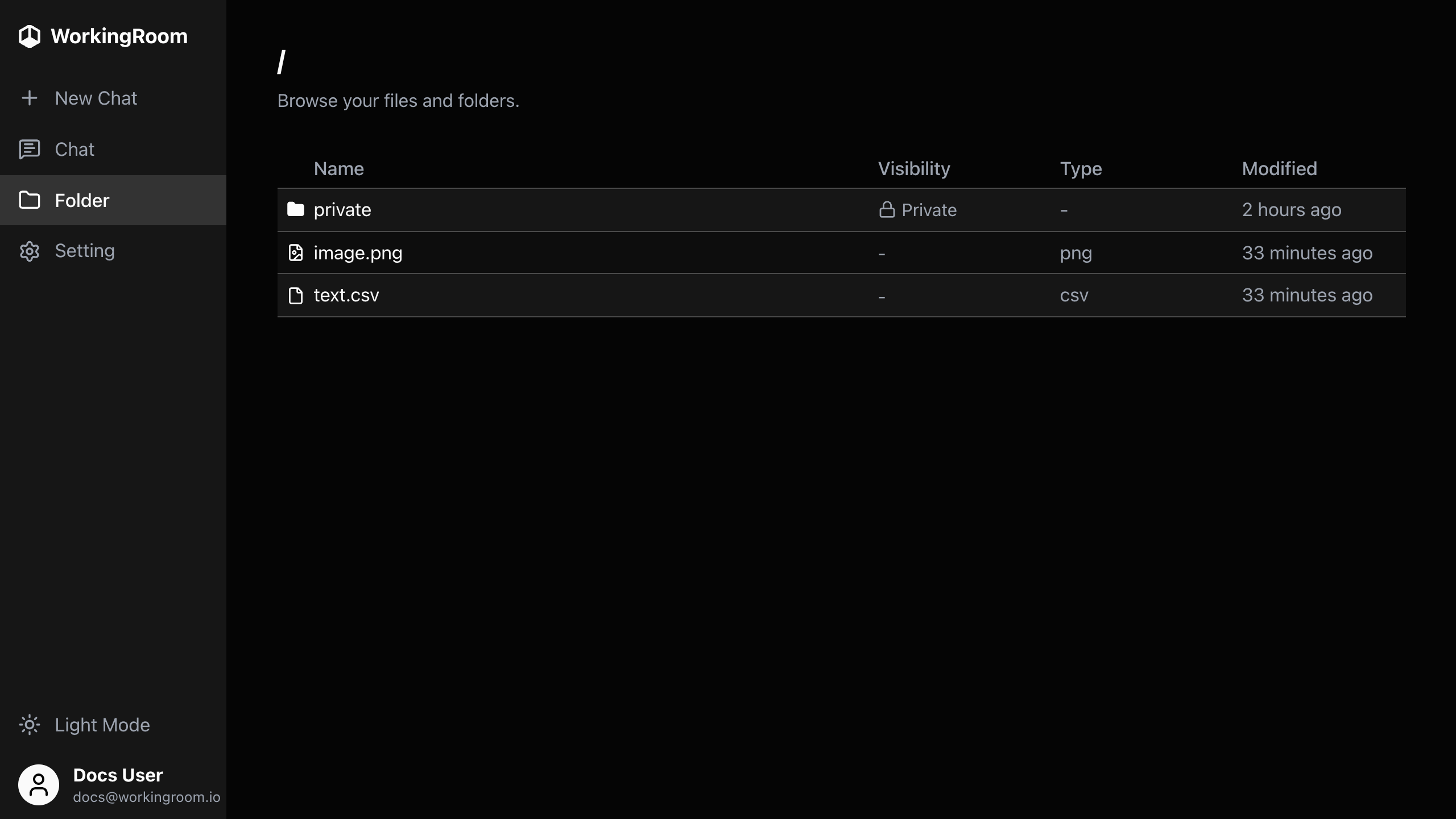
To upload files, open the folder where you want to place them and then drag and drop the files into the file list.
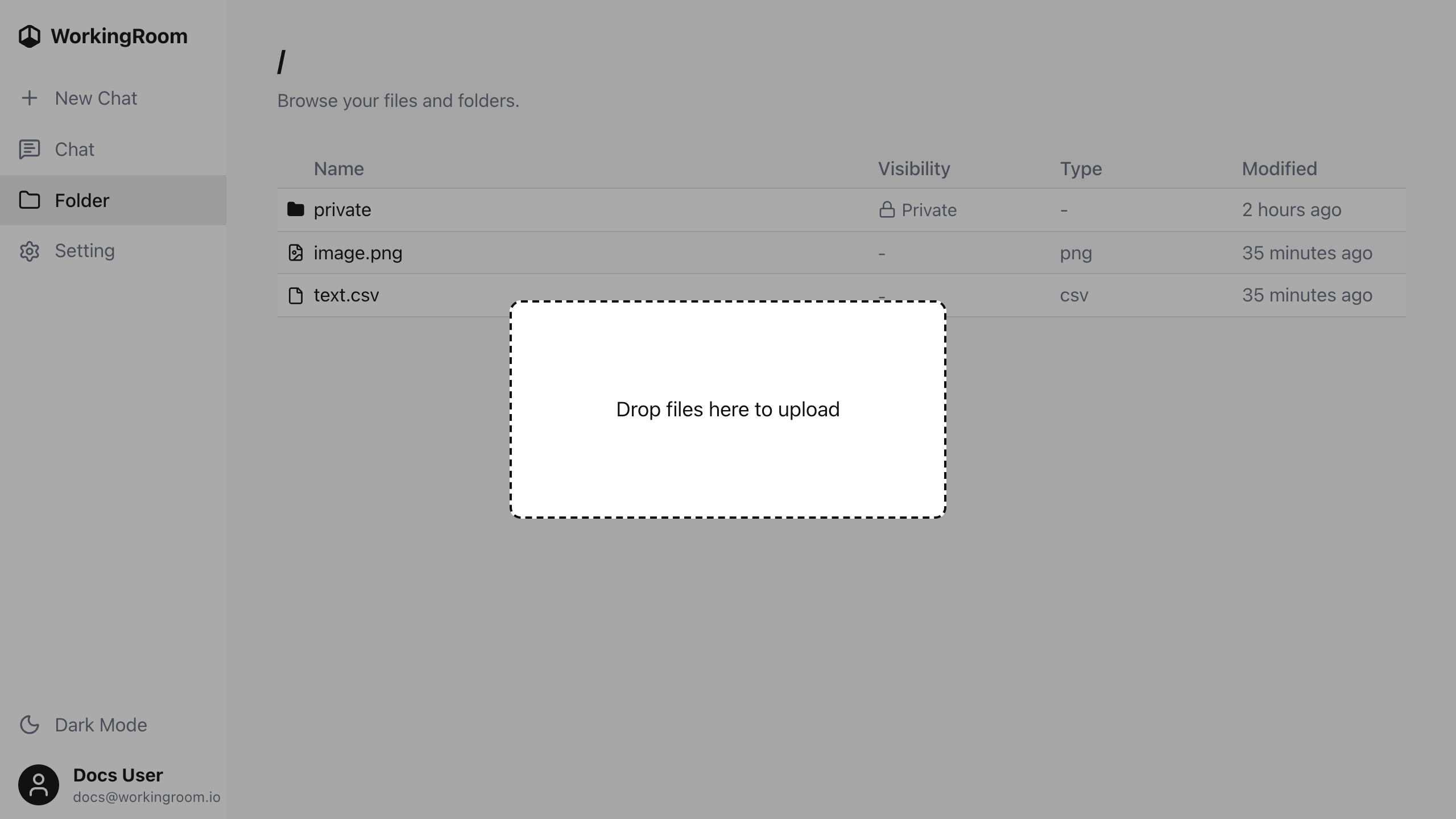
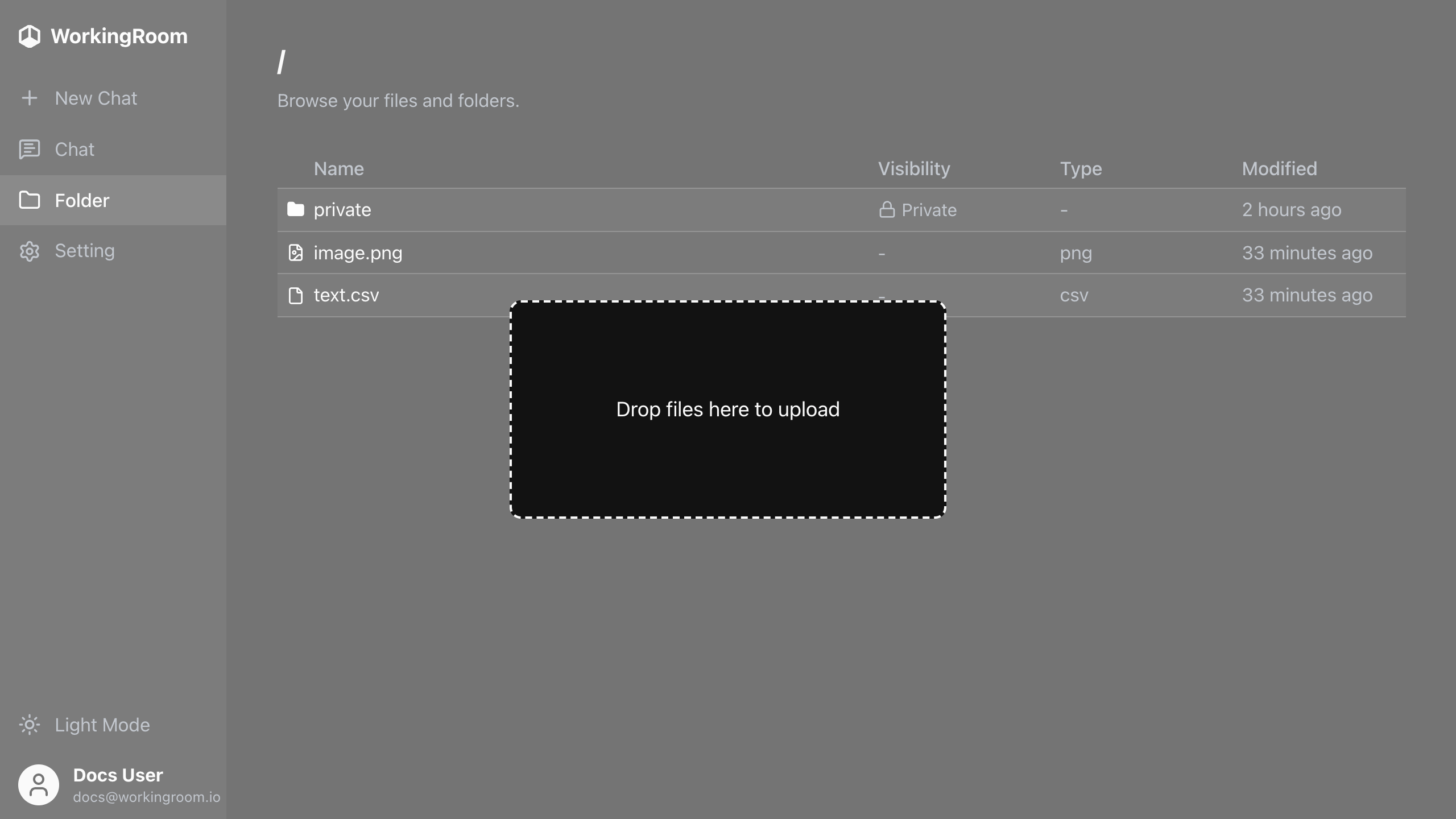
The dropped files are uploaded into the currently opened folder.
At the moment, folder upload is not supported. If you want to upload content from a folder, upload the files individually.
Create files and folders
Right-click inside the file list to open the context menu, then select New Folder or New File to create an item in the currently opened folder.
When creating a new file, choose whether it should be a Markdown or plain text file. After creation, you are taken to the new file's content page.
Edit files
Markdown and plain text files can be edited directly in WorkingRoom. Open the file and click Edit on the file content page to switch to the text editor, make your changes, and click Save to persist them or Cancel to discard them.
File types supported by AI agents
AI agents can currently work with the following file types:
- Image files:
jpeg,png,webp,gif - PDF files
- Text files:
text,md,csv, and other text-based files
Private folder
Each user also has a dedicated private folder.
Files in a private folder are not shared with other users in the tenant. Only the user who owns that private folder, and AI agents acting with that user's permissions, can access files inside it.
In the file list, private files are labeled as Private so that you can distinguish them from shared files.
If you move a file into your private folder, that file becomes private data. The same rule also applies to child folders and any files stored under them.
In other words, everything placed under a private folder is treated as private and can only be accessed by that user and AI agents started by that user.
If you want a file to be available to your team, place it in the shared area of the tenant file system. If you want a file to remain user-specific, keep it in your private folder.