Chat
Chat is the primary interface for working with the AI agent in WorkingRoom. You can create and edit files, organize your workspace, and carry out complex tasks through natural conversation.
Starting a chat
Click New Chat in the sidebar or Start your first chat on the home screen to create a new chat. You are automatically redirected to the chat view once it is created.
Sending messages
Type your message in the input field and press the send button or Enter. The input field expands automatically up to 10 rows as you type. Use Shift + Enter to insert a line break.
Responses stream in progressively. While the agent is working, the names of any tools or sub-agents currently running are shown in real time.
Working folder
Each chat has a working folder — the directory the agent uses as its working context when reading and writing files. The current working folder is shown below the message input as Current directory.
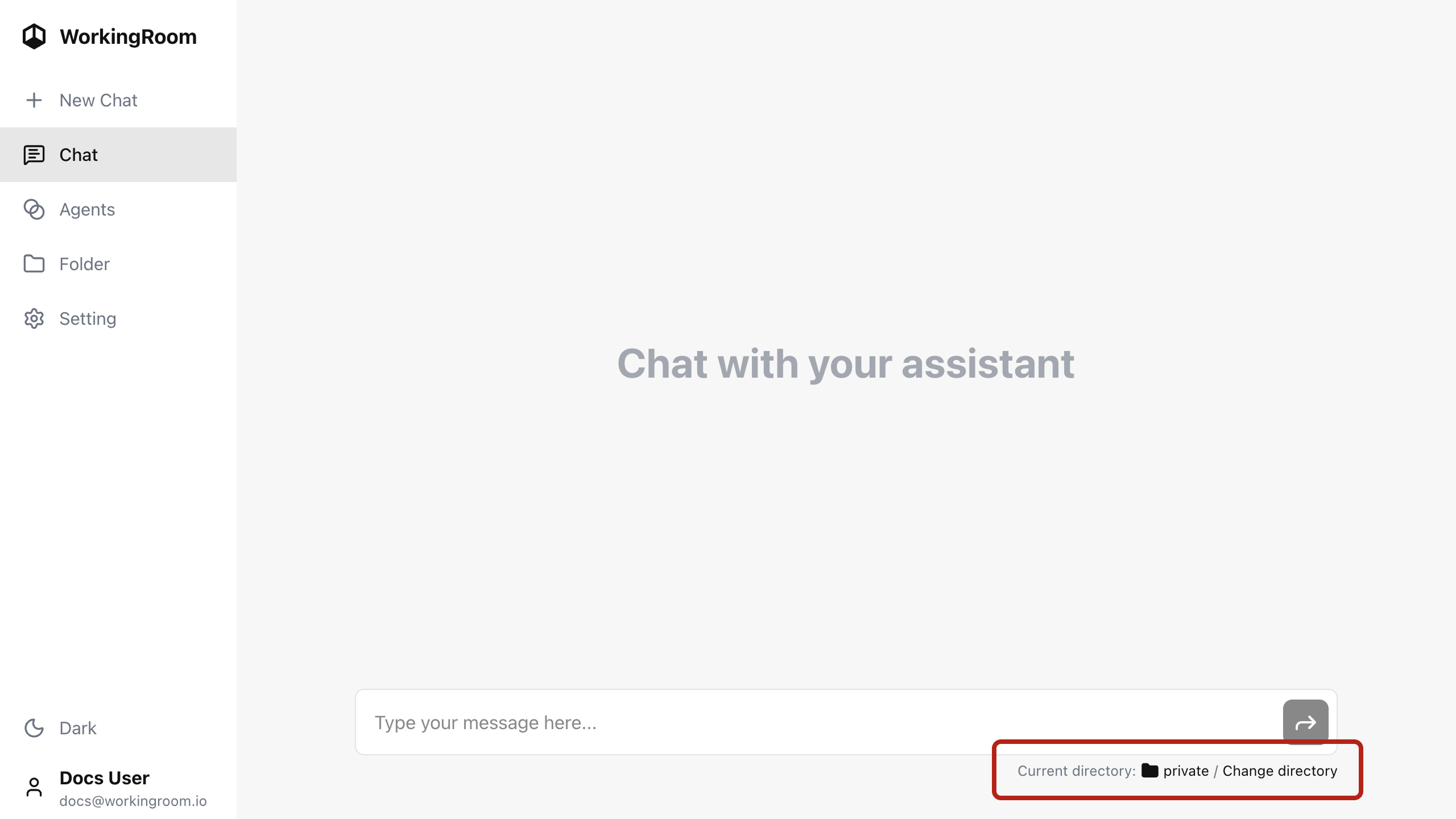
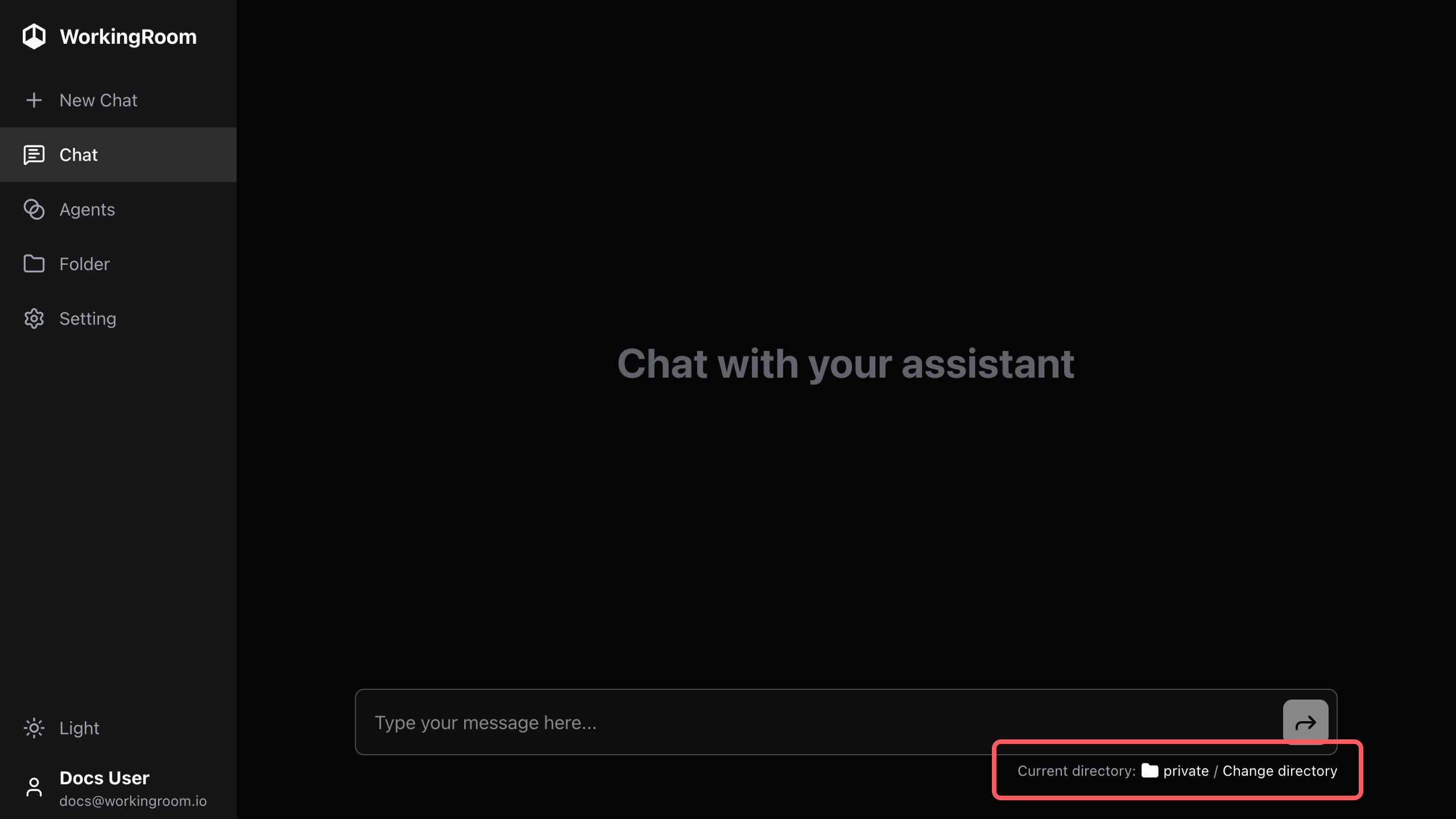
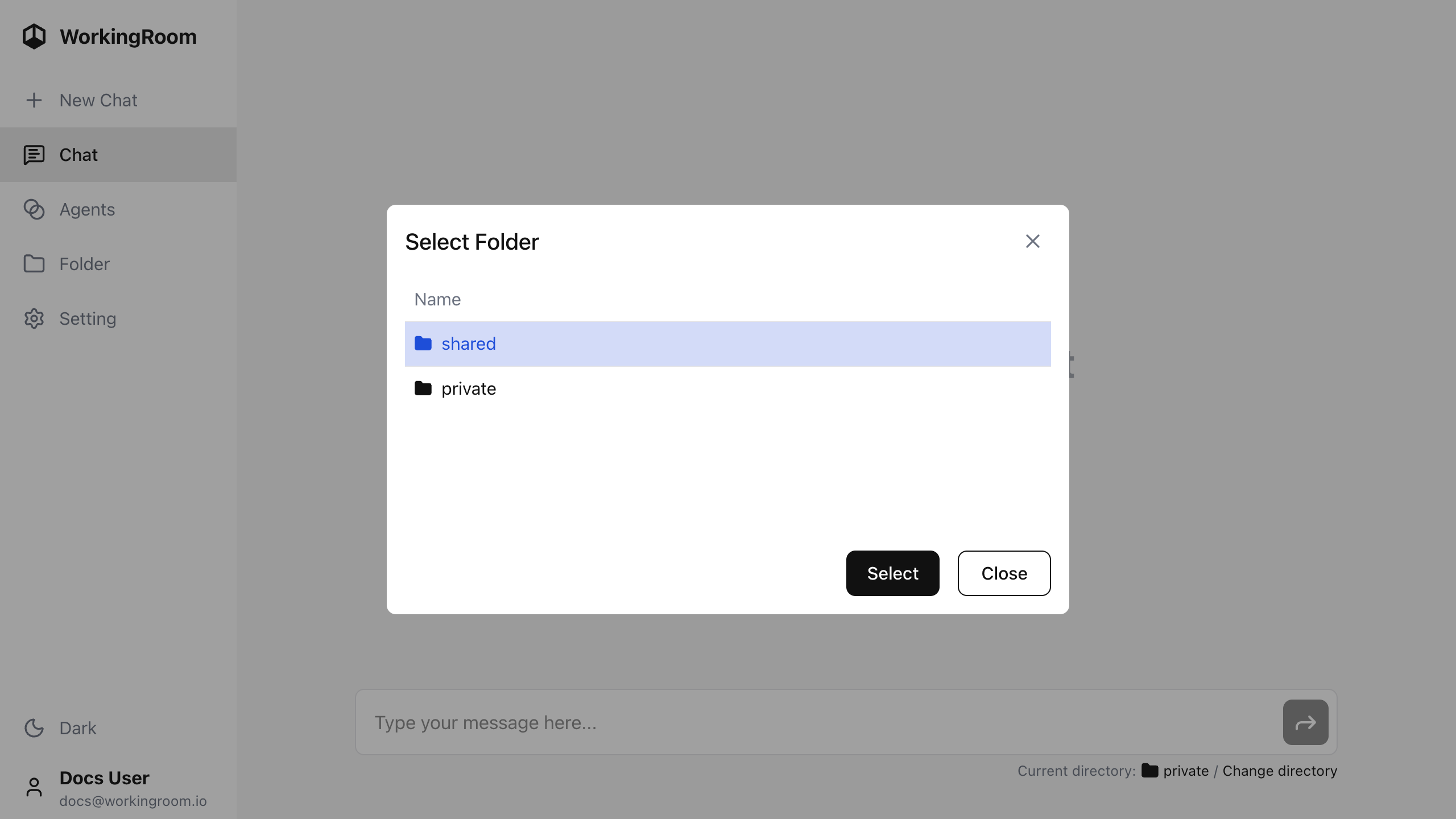
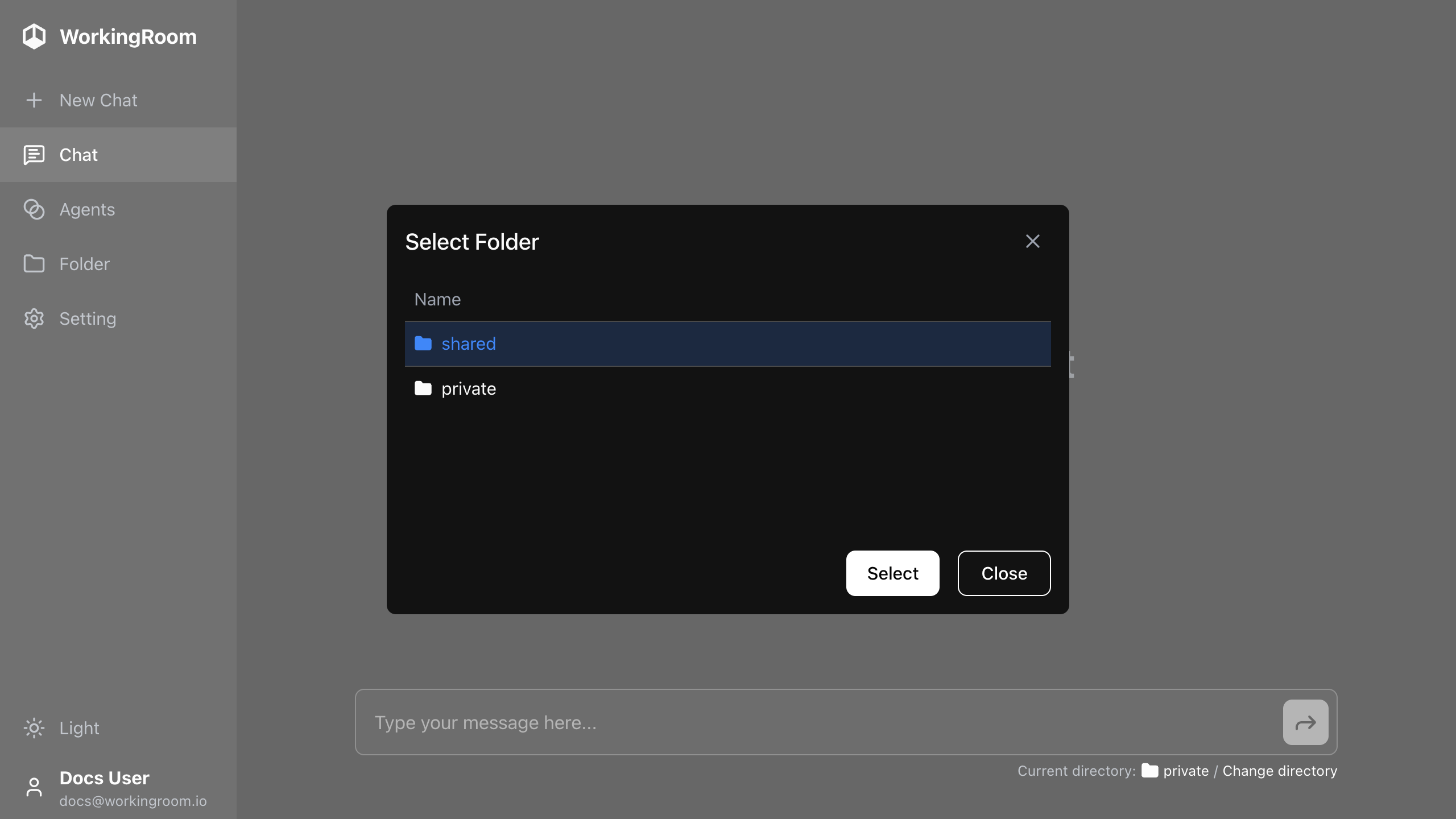
By default, the working folder is set to your private folder. To change it, click Change directory next to the current folder name and select a different folder from the file picker. The selection is saved immediately and persists across sessions.
You can also start a new chat with a specific folder already set as its working folder. Open the folder in the file browser and click Start Chat at the top of the folder page — a new chat is created with that folder as its working folder.
Attaching files
You can attach files to a message to share them with the agent.
Drag and drop : Drop files anywhere onto the chat area to attach them to your next message.
File picker : Click the attachment icon in the input area to open a file picker. Images and PDFs display inline previews.
Multiple files can be attached to a single message. Attached files appear as thumbnails below the input field. Hover over a thumbnail to reveal a remove button.
Viewing files created by the agent
When the agent creates or modifies files, the resulting files appear as proceeded files inside the assistant message. Click a file name to open it in the file viewer. Up to 5 files are listed; if there are more, a "and X more files" indicator is shown.
Approval workflow
When the agent is about to perform a destructive or side-effecting operation — such as creating, editing, deleting, or moving a file — the chat switches into approval mode.
Each approval card shows:
- The operation type (create / edit / delete / move)
- A diff of the proposed changes (additions in green, deletions in red)
- Links to the affected files
Click Approve to allow the operation or Reject to cancel it. If multiple approvals are pending, you must respond to all of them before the conversation can continue.
Chat history
The home screen lists all your chats sorted by most recent activity. Each entry shows a preview of the last message and a timestamp. Scroll down to load older chats.
Inside a chat, scroll up to load earlier messages. A button in the bottom-right corner lets you jump back to the latest message. Auto-scroll resumes automatically when you scroll back to the bottom.
Deleting a chat
You can delete a chat from the chat list on the home screen or from the menu inside the chat view. Deleted chats cannot be recovered.