FAQ
- Forget password flow
- What if the owner forgets the password?
- What file operations are currently unavailable?
- What file types can AI agents handle?
Forget password flow
If a user forgets their password, an owner or admin can reset it from the User Management page and issue a temporary password.
In the User Management page, the reset action is available from the context menu that appears when you right-click the target user's row.
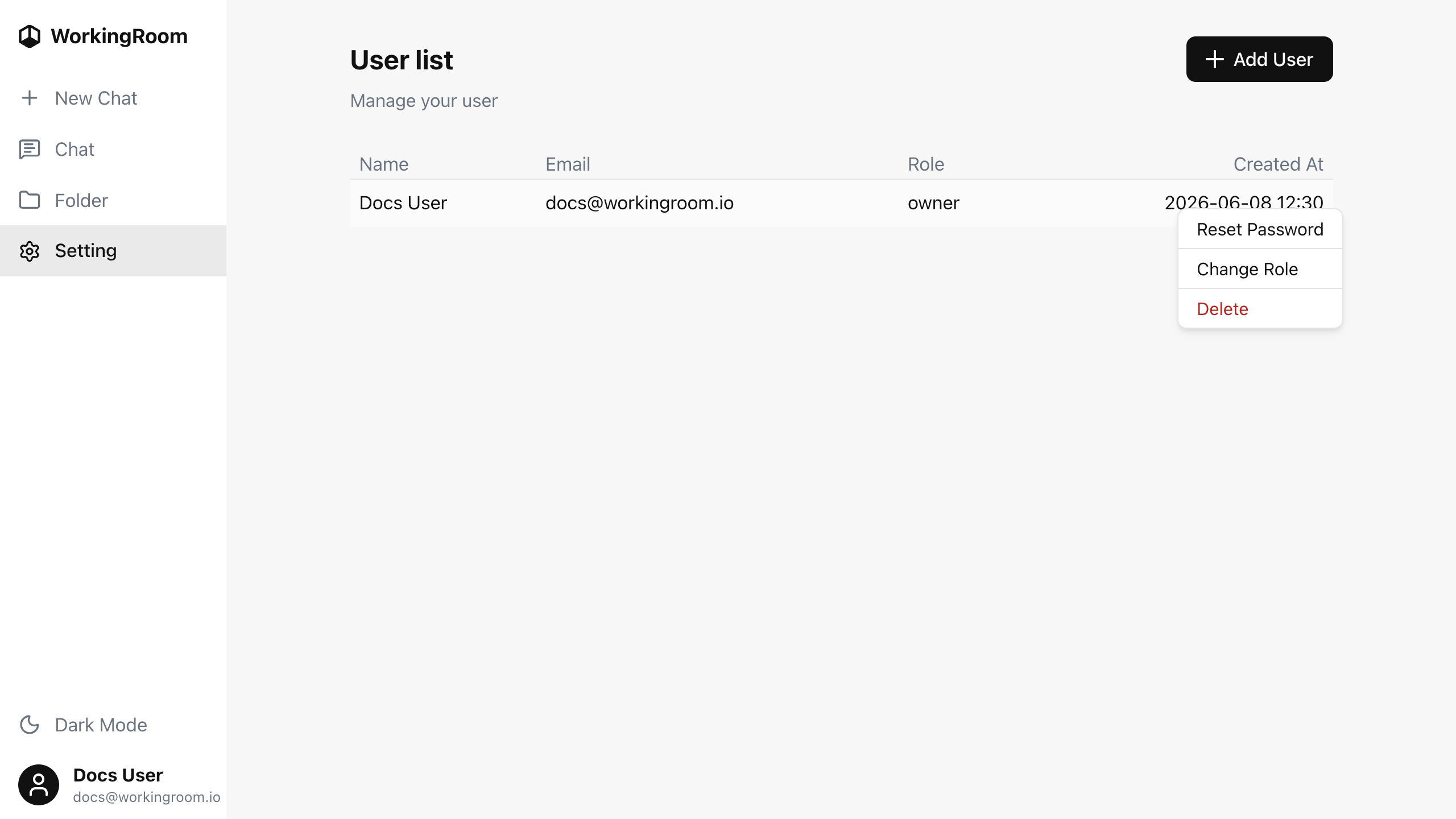
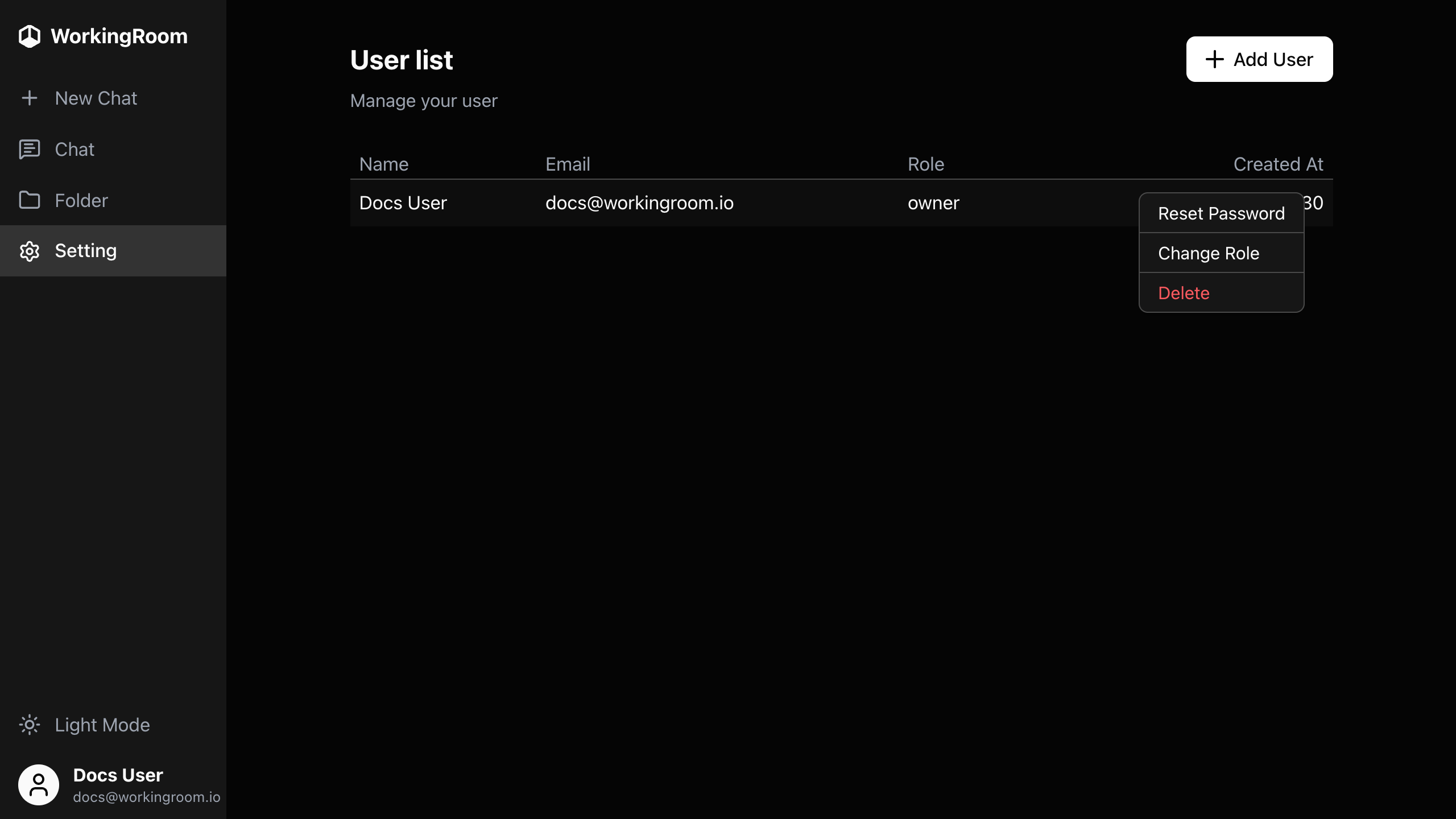
For users other than the tenant owner, contact your tenant owner or admin and ask them to reset your password.
After the password is reset, sign in with the temporary password and then change it to a new password that only you know.
What if the owner forgets the password?
If the owner is still signed in, they can reset their own password by following the same password reset flow from the User Management page.
If the owner is already signed out and no longer knows the password, use one of the following recovery methods:
- Ask another
adminuser in the same tenant to reset the owner's password. - Update the password by overwriting the password hash in the database.
After a temporary or replaced password is issued, sign in again and change it to a new password that only the owner knows.
What file operations are currently unavailable?
In the current 0.1 release, WorkingRoom does not provide file editing or file creation features.
Folder upload is also not supported at the moment.
What file types can AI agents handle?
AI agents can currently work with the following file types:
- Image files:
jpeg,png,webp,gif - PDF files
- Text files:
text,md,csv, and other text-based files